


 Home / News & Events /
-
Share
-

-

-

-

Updated 3 days ago
4x6 Thermal Label Printer Setup: From Shipping File to First Parcel Scan
admin
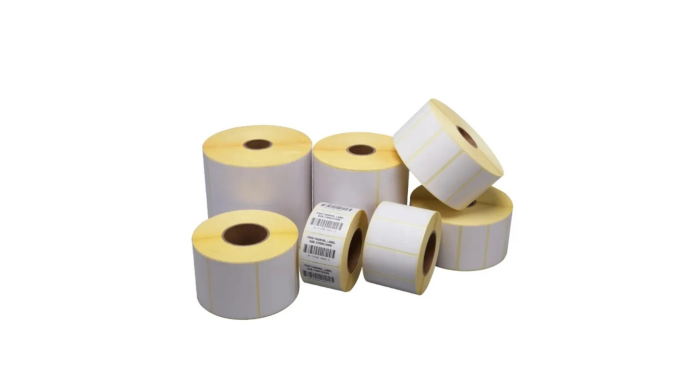
A 4×6 thermal label printer can be used to feed the blank label perfectly and also to cut off the carrier barcode. On a new packing station, the printer might be running while shipping application sends a Letter-sized pdf, or the loaded labels might be a different page size. Changing print darkness won't help much until the station gets the correct page to the proper media.
If you are a small e-commerce seller, or you are a team that has a second packing bench, the objective is to print an order out of the system correctly, via the normal order workflow. Process the shipping file to the printer and label roll, and verify the label that was used, before saving the set up for daily use.
Use the Shipping File You're Using
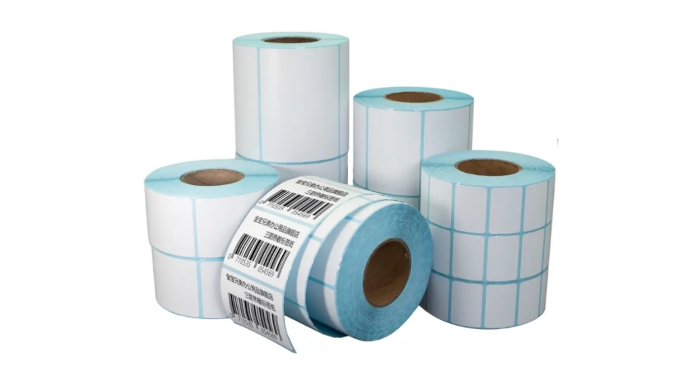
Look at a sample label created by your carrier/marketplace and check the pdf page size or stock that is selected in the shipping app. Some workflows have a special thermal layout, and others put a label on the entire paper of an office size page. When present, choose the thermal layout, in the shipping tool, first. If an entire office page is shrunk, then the barcode and address will be shrunk to fit the label.
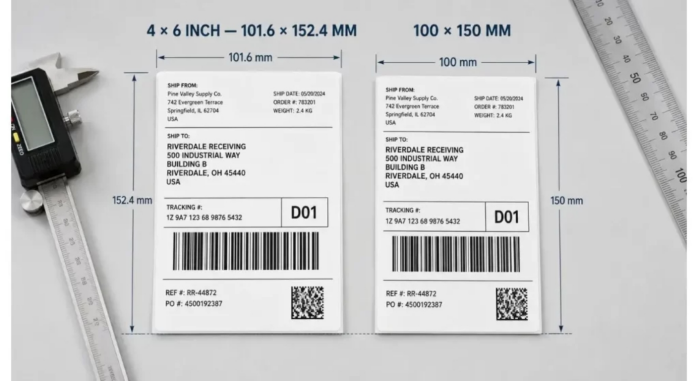
Truely 4x6” label is 101.6x152.4 mm, Jin Bao Brother's shipping label size guide is based on common shipping carriers, and their adhesive thermal waybill labels feature both 4x6” and 100x150 mm stock. Check the shipping workflow to see which format it is producing as well as the printer queue format it is configured to accept. If the file and stock do not match, check for a compatible matching format and stock prior to scaling. Also look for return labels. They can be from a portal other than the outbound labels portal.
Align Printer's Media Path with the Roll.
When selecting a printer, make sure that your shipping software works with the printer or the type of print you are looking to use on the computer at the bench. Determine how operators will print – dedicated shipping app or open downloaded PDFs. That decision will dictate which connection, driver and print setting(s) you will want to check.
Please refer to the specification of the exact model for the label width, printable width and feed configuration. If a printer's dimensions are nominal 4 inches, then it is possible that the printer cannot print to the edge. Check the core and maximum OD of an internal roll holder. When using an external feed, consult the manufacturer's routing guidelines, and allow space for the media to go in straight. For models that have it, use fanfold stock only.
Jin Bao Brother's direct thermal adhesive label rolls also come in a 4 × 6" shipping roll. Please make sure to specify the model of the printer and check the size of the physical label, roll build and sensing format with the supplier before ordering. The coated face is activated by the printhead, without the need for a ribbon. Adjust the printer so that the face you wish to print is pointing towards the printhead according to the printer's loading diagram. The guides should be adjusted so that the liner will lie straight yet it should be free to move.
Feed Before Printing an Order:
Once the Media is loaded, select the sensing mode that the stock is using. Gap sensing is used to sense gap existing between label and exposed liner and black-mark sensing is used to read a printed mark at a specified position. Run the printer manufacturer's calibration routine for the materials used. While the printer is learning the starting position of each label, it is possible for the printer to move several labels.
Make sure media moves to an expected position by using the feed control. When the feed test fails, first verify the placement of the sensors and verify the media loading before editing the shipping file. If the feed test is successful and the print is cut off, go back to the PDF dimensions, driver stock size and print preview.
Print from the normal queue print job.
Use the appropriate printer list and printer paper size. If the PDF and loaded media are the same size, check the preview at actual size, confirm the orientation and printable area. Test the browser and/or desktop pdf viewer that staff will be using. A test page printed via a printer utility can print without any problem even though the browser has a different page size or scaling.
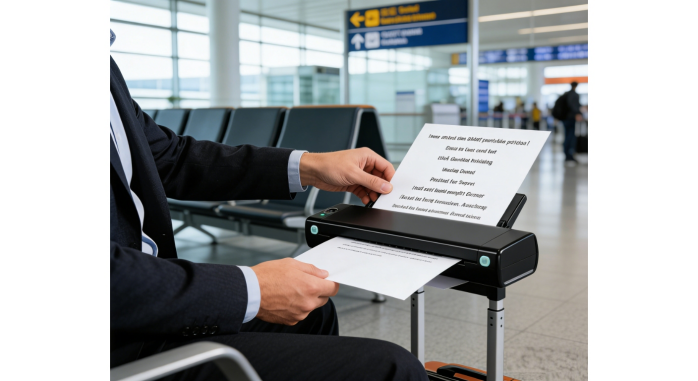
Print multiple test orders back-to-back. Check placement of first and last labels – is there clipped content or blank labels between jobs? If the layout is stable, but the bars appear faint and/or separated, use the printer manufacturer's recommended settings. Change one setting at a time and then repeat scan.
For a shared computer have another operator do the work with his/her own account. Their print dialog may have their other queue or paper size set. If the station also generates packing slips, print a packing slip and then a shipping label to make sure that switching jobs doesn't generate either of the documents to the wrong printer.
To check the Label on the Parcel and Save the Setup.
The sample label should be flat on the packaging material which you normally use for shipping, avoiding tape edges and seams. Use the equipment at dispatch to scan the applied label and verify that the tracking number that is put out from the equipment is the same as the test order number. For those that ship cartons and flexible mailers, review both. This occurs if a filled mailer flexes the barcode region, even if a flat carton is printed with the same print.

When the station is operating, log the printer queue, the carrier format and the approved roll reference. When a station requires a specific roll design, Jin Bao Brother's customized direct thermal label rolls can be offered. Order refills or add a workstation using the saved settings as a basis. Rescan an order following a driver change, fresh shipping app or stock dimensions.
| Print route | Evidence to retain | Verification owner |
| Marketplace outbound label | Dated test order ID | Fulfillment lead |
| Carrier return portal | Approved return PDF | Returns lead |
| Backup packing bench | Successful print and scan record | Shift lead |
Conclusion
The first step to a great 4×6 is the carrier's page format and the last step is having a label on the parcel that can be read. Test file to printer queue and physical media and match this path to the one that will be used daily by the path operators. Record the combination that was used to save the work for another packing bench to repeat the combination.
FAQs
Q1. Is there any ink or ribbon required for a 4x6 direct thermal label printer?
Direct thermal media is the type of media which creates an image upon being heated by the printhead. Use direct thermal mode with compatible labels with the coating.
Q2. Can I use 100 × 150 mm labels for a 4 × 6 inch file?
There are two sizes that are different. Use a matching layout and stock size or check the final print, if your shipping workflow specifically states that you can do this.
Q3. The printer feeds correctly but doesn't print the address, why?
The feed test is used to test the movement of the media. Find the crop by comparing the source page size, driver stock size and printable area.
Q4. Do I need to purchase rolls for my printer, or fanfold labels?
Review the Model feed options and space in the Station. Please check the core and outer diameter prior to ordering for rolls.
Q5. Carrier acceptance is determined by successful handheld scan?
It will verify that your scanner "read" the printed code in your test situation. Be sure to review your carriers format requirements prior to dispatch.
We'll Get Back Within 24 Hours
Related Articles
Thermal Paper for Printers: How to Diagnose Receipt Problems Before Reordering
2026-11-13
Roll Label Printer Media: How to Match the Roll to the Printer and Applicator
2026-11-13
8.5 × 11 Copy Paper: How to Keep Prints Consistent Across Shared Printers
2026-11-12
Thermal Printing Labels: How to Combine Preprinted Artwork With Variable Data
2026-11-12
