


 Home / News & Events /
-
Share
-

-

-

-

Updated 1 week ago
8.5 × 11 Copy Paper: How to Keep Prints Consistent Across Shared Printers
admin
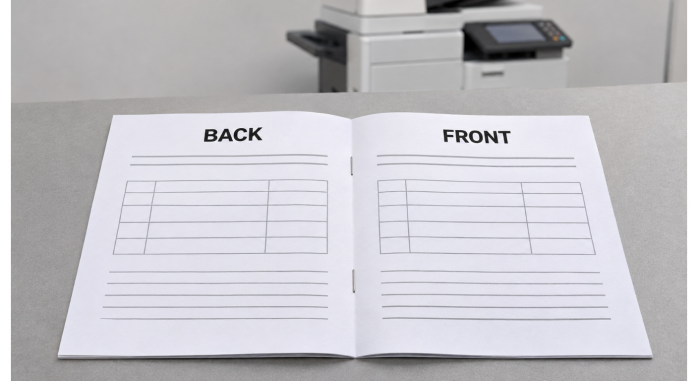
The same Letter PDF prints fine at reception but is smaller when printed on the printer down the hall. Document has not been modified. The second computer might be printing on a queue set to A4 or the copier might be taking paper from a different tray that has a different paper. The distinction is usually not apparent until one of the tables is more difficult to read or the back of a form faces the wrong direction.
8.5 × 11 copy paper is one piece of a repeatable set-up for office administrators and print room teams. Come to find steady production by testing the file, printer queue and physical tray in this sequence. Afterwards, check the work on the devices that staff use.
Check the Page Size in the File
Use a PDF that has created a poor print, and verify its page dimensions. US Letter is 8.5 × 11 inches, or 215.9 × 279.4 mm. A4 is 210 × 297 mm, which makes it narrower and longer. A document may appear normal on the screen, since the viewer may fit page in window to view either page. The distinction is when the print dialog needs to be scaled to fit that page on a physical sheet of paper.
Jin Bao Brother's 8.5 × 11 copy paper series includes the Letter size for common office paper works. It comes with a separate format of the wholesale A4 copy paper. If the document is designed as a recurring document and that document is set to Letter, then make sure that the source template is set to Letter and that the pdf which is exported is still set to Letter. If you receive a file using A4, and then need a Letter version, consider asking for a Letter version instead of this being an intentional scaling.
Review attachments and initial page. A combined PDF is allowed to consist of a Letter cover and an A4 appendix. If it is both formats on purpose, print two sets separately, or if the device is loaded with both stocks, try to test the print by tray using the page size setting.

Go from the Job to the Print to Tray.
Open the file in the app that you are using and verify the chosen printer, paper size and scaling. Select actual size for a PDF and sheet of the same size and layout that will fit the printer's printable range. When displayed in preview, if it shows information beyond that area, check margins prior to printing. If the dimensions of a form are critical, request the owner of the template to shift the content inwards so that it will fit at the desired size.
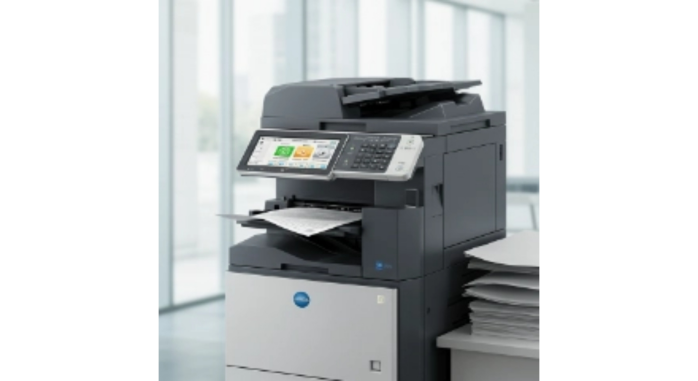
Check the tray guides and paper size set for that tray at the device. A Letter does not imply what somebody loaded. Take out one sheet and check with the ream wrapper or measure if the ream wrapper is not available. If an office is set-up to do both formats, have a designated tray for each format if it can be done.
Test on empty Letter tray. If necessary, the job may pause for additional Letter paper or may use an alternative paper source. If you have a form that must be sized exactly, document the behaviour you are looking for and demonstrate to staff how to restart a held job after reloading.
Test Duplex Orientation Separate To Page Scale
Use a short sample of which there are prominent front and back pages. When you're creating a book that's a portrait format, begin with long edge binding. Portrait pages that turn-up are often bound with short-edge binding. Test on paper as the reading direction in the setting will be more important than just the name of the setting. For an upside down reverse side, an orientation/binding check should be performed.
If they are using different queues, run the same sample from the shared workstation and from a staff laptop. Check that the page sequence, front to back and margins are correct. If one of the devices is printing the back upside down, check the queues and the drivers settings for the device and the working set. Use a print preset for frequently used forms (when available in the application).
Select the Letter Grade With a Real Office Job
If the format is successful, compare candidates' grades on the same job. Jin Bao Brother has the copy paper US Letter (80gsm). Refer to the media range of the printer and be sure to use the same tray, driver and document settings for all samples. Open a normal text document, and open a duplex page containing a shaded table. Test for show-through on the reverse side, curl and stackability of printed sheets.
According to Jin Bao Brother's copy paper quality control overview, the dimension, alignment and flatness of the copy paper in the cutting and inspection process are checked. When testing a new grade, use a wrapped sample so that you can observe the performance of a full stack loading and feeding. If only one printer is having an issue with the same sample, check the settings on the trays and feed path of the printer. If the problem persists with the same ream from machine to machine, then try to keep that ream and ream wrapper for investigation.
If the staff regularly print meeting packs or training handouts add in a longer run. Test is a two-page job to check the layout, and a longer job to check if sheets are easily collated and stapled upon coming out of the printer.
Make Working Setup Easy to Repeat: Create a setup that is easy to repeat.
Store one approved Letter PDF and one printed reference (at the print station). Add a document that real people use, like a duplex form or report containing a table close to the edge of a page. Write down the queue and the tray that it came from. Rerun the reference after a driver update or equipment move, before using the new defaults, etc.
| Reference job | Retain for comparison | Rerun after |
| Department form | Signed-off blank form | Template revision |
| Training handout | One collated set | Duplex preset change |
| Monthly report | Approved table page | Driver update |
On the purchasing record, write Letter and all the dimensions. When replenishing, store a labelled pack of each device next to each device for staff to match to the tray. If the two sizes are kept next to a common printer, split them up physically, and ensure that the labels are clearly visible when reams are opened. If the setup has been changed, change the queue record at the same time as the tray label is changed.
Conclusion
To ensure a consistent Letter print job, the document, the queue and the sheet in the tray must agree. First solve page size and duplex orientation and then compare paper grades by using the jobs you print on a daily basis at your office. Maintain a reference job to restore to if equipment or default changes.
FAQs
Q1. Is 8.5 × 11 copy paper the same as A4?
US Letter is wider and it is shorter than A4. Choose the size of the sheet based on the size of the document or the person who you are sending the envelope to.
Q2. Why is a Letter PDF smaller when printing on one printer?
That queue can have a different stock size or one that reduces the size of the page. Follow preview and driver settings in comparison to the device which prints it correctly.
Q3. Always use Actual Size?
Use it when the file is equal to the paper that is loaded and when the content is within the printable area. Use the preview to see if there is clipping before printing.
Q4. What makes the back of a duplex page print upside down?
The binding edge might not correspond to the reading direction. Print a 2 page sample to see how it will look in the final print-out.
Q5. What tests should I perform prior to ordering new Letter paper grade?
Do test runs of single and duplex print jobs on equipment used. Check the feeding, reverse side show-through and stacking of the sheets.
We'll Get Back Within 24 Hours
Related Articles
Thermal Paper for Printers: How to Diagnose Receipt Problems Before Reordering
2026-11-13
Roll Label Printer Media: How to Match the Roll to the Printer and Applicator
2026-11-13
8.5 × 11 Copy Paper: How to Keep Prints Consistent Across Shared Printers
2026-11-12
Thermal Printing Labels: How to Combine Preprinted Artwork With Variable Data
2026-11-12
